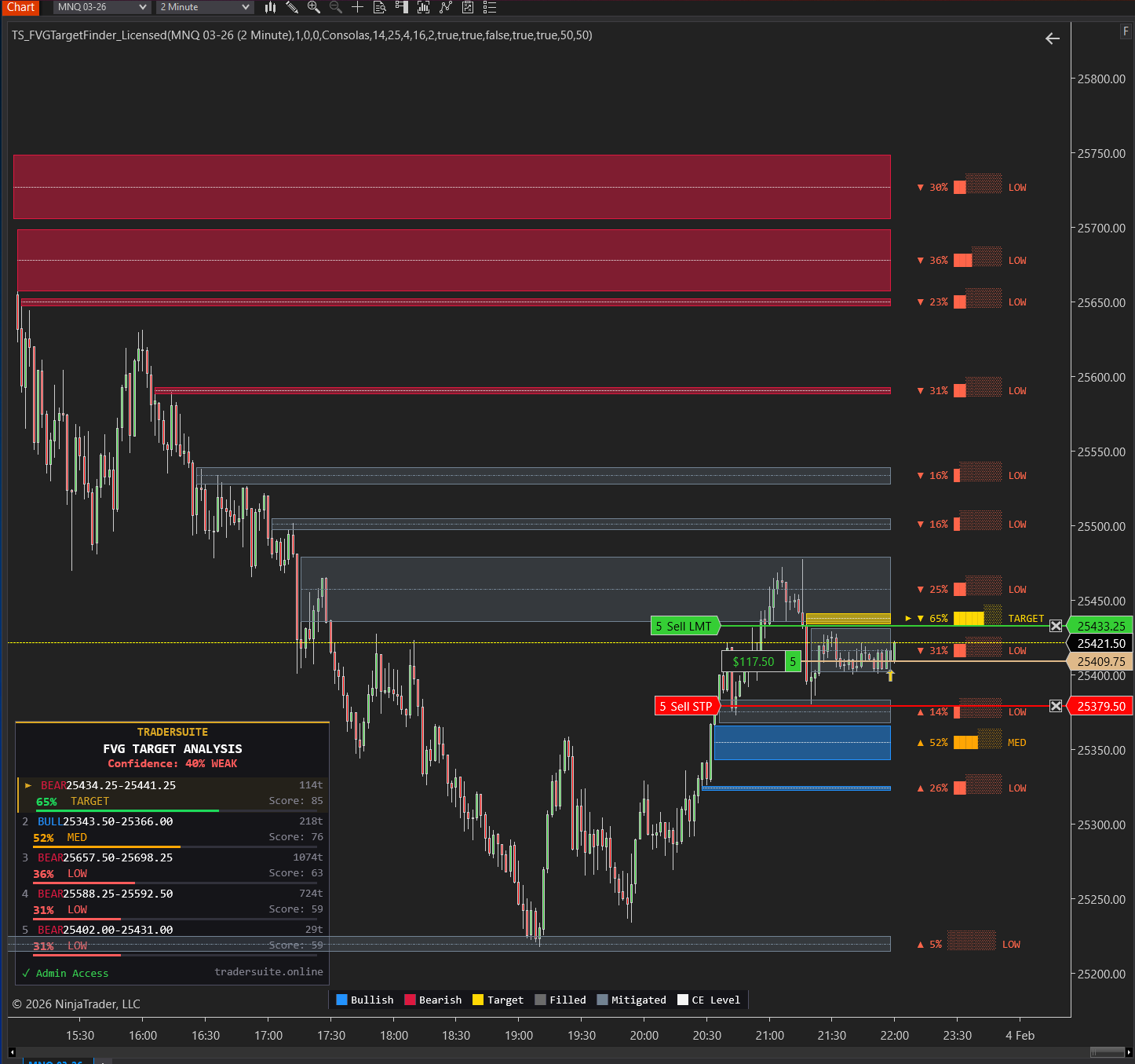
FVG Target FinderFVG Target FinderFVG Target Finder
Click to enlarge
Pro Included
NT8

FVG Target Finder

Advanced Fair Value Gap (FVG) detector with multi-factor scoring algorithm that identifies which imbalance the market will target next. Features probability analysis, confidence rating, colorful SharpDX panel, and customizable display options. Supports both wick-based and body-based FVG detection modes.

4.4 (49 reviews)
$49.99
Buy Now

Secure Download

Instant access

Lifetime Updates

Free forever

2 Activations

Per license

Documentation

Step-by-step guides

TS_FVGTargetFinder v2.1 — Complete User Guide

Identify which Fair Value Gap the market is targeting next using data-driven probability scoring.


What Is TS_FVGTargetFinder?

TS_FVGTargetFinder goes beyond simple FVG detection — it answers the question every ICT trader asks: "Which imbalance is the market going for next?"

The indicator scans your chart for Fair Value Gaps in real-time and runs a proprietary 100-point scoring algorithm across five factors — Proximity, Trend Alignment, Size, Recency, and Displacement Quality — to rank every active imbalance and identify the highest-probability target.

Each FVG is assigned a fill probability percentage and a strength rating (HIGH / MED / LOW) relative to the leading candidate. A dedicated Confidence meter shows how dominant the top pick is over the competition, so you know whether the signal is clear or contested.

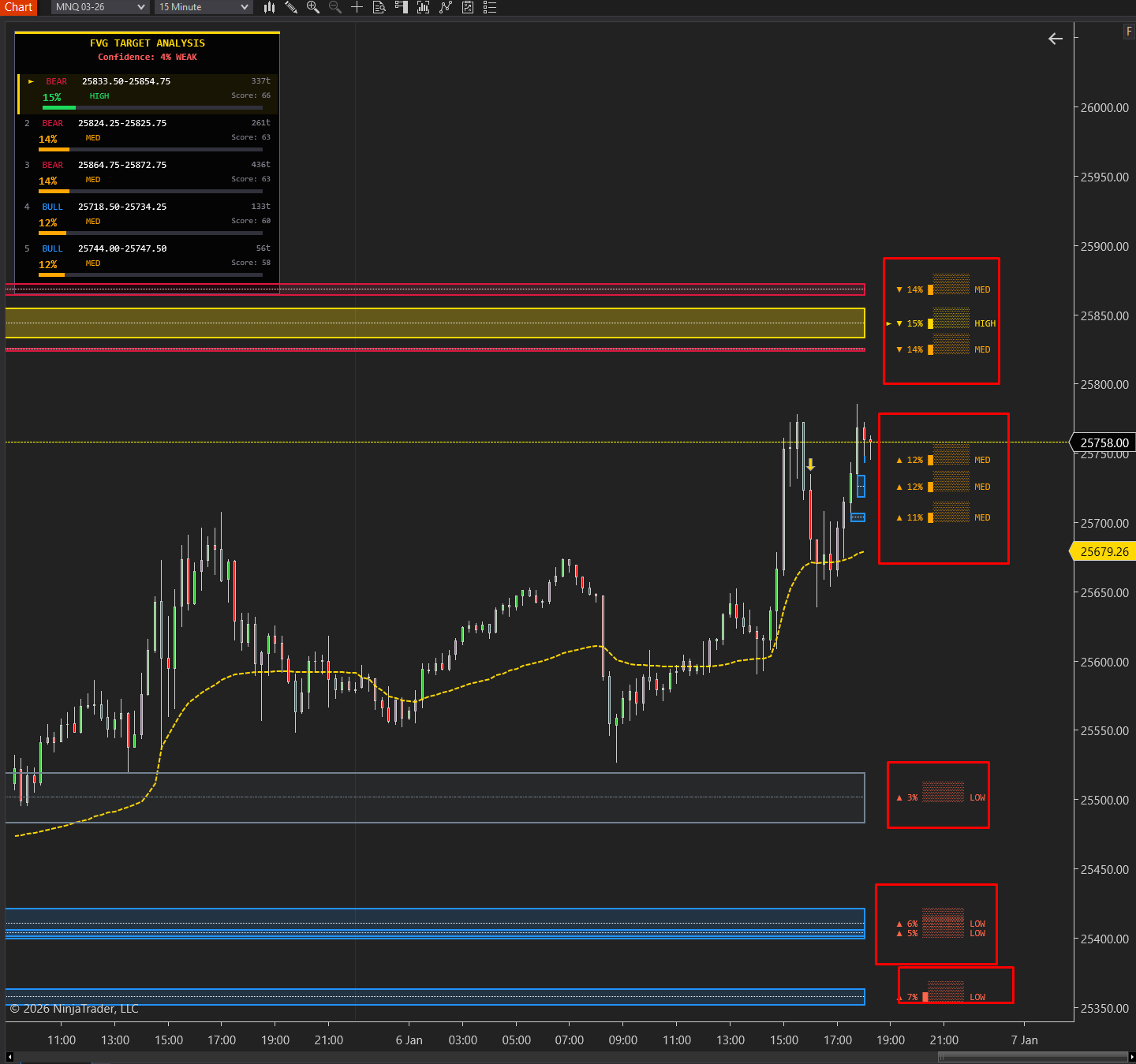
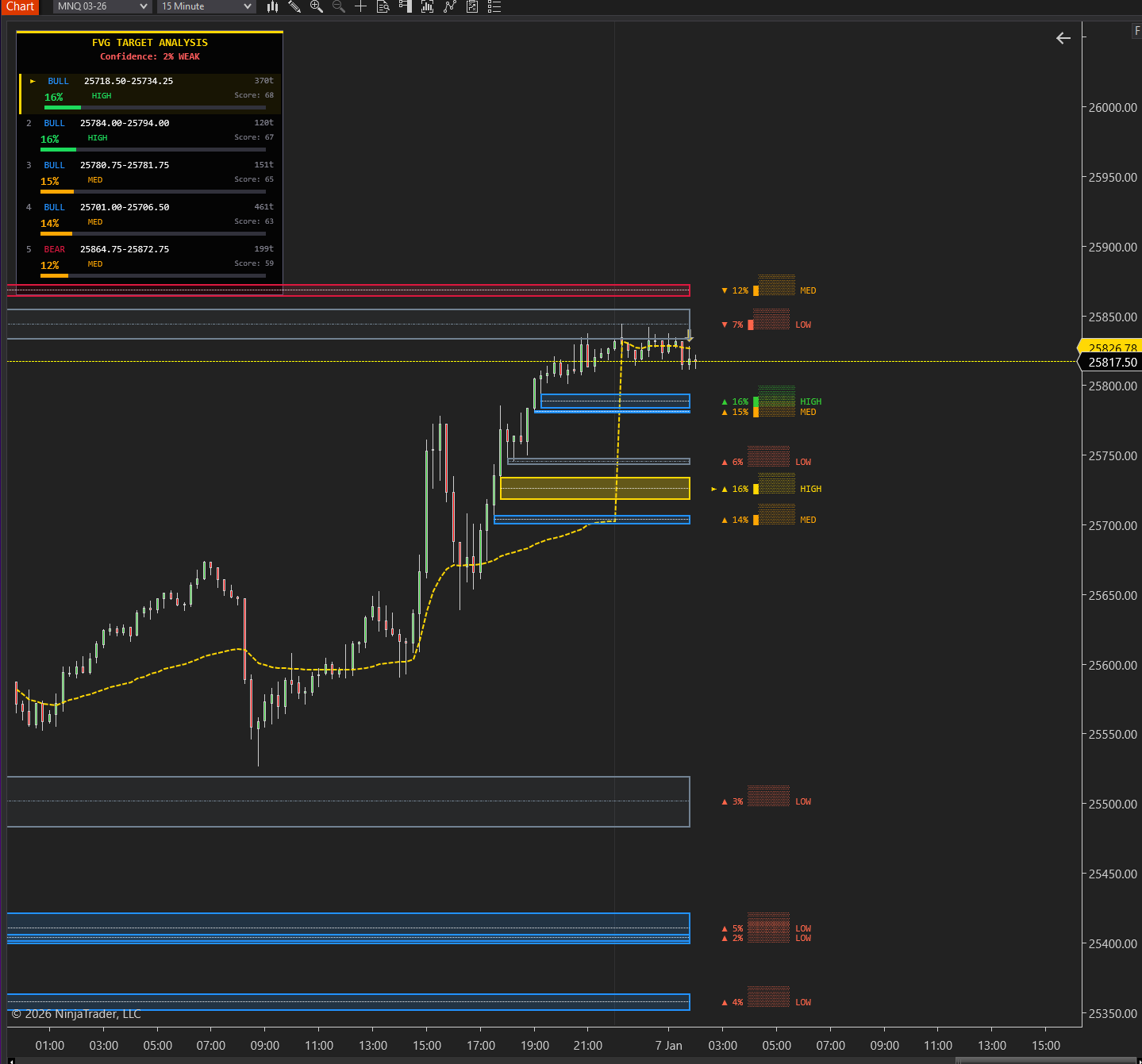
The premium SharpDX-rendered analysis panel displays the top 5 ranked targets with color-coded entries (blue for bullish, red for bearish, gold for the primary target), visual probability meter bars, distance in ticks, and score breakdowns — all updated in real-time as price evolves.

On-chart labels display probability percentages, visual meter bars, and strength ratings directly on each FVG zone, giving you instant context without needing to reference the panel.

A color-coded legend bar at the bottom of your chart shows exactly what each zone color represents — Bullish, Bearish, Target, Filled, Mitigated, and CE Level — so you never have to guess.


📦 Installation

  • Download the Indicator file from your TraderSuite account
  • Import it into Ninjatrader
  • Import it into 2 min / 5 min or 15 min chart
  • Enter your license key in the "0. License" section and click OK


⚙️ Settings Explained

Group 0 — License

SettingDescription
License KeyEnter your TraderSuite product license key. Supports product keys, membership keys, and admin keys. Leave blank to use trial mode.

Group 1 — FVG Settings

SettingDefaultDescription
Min FVG Size (Ticks)4Minimum gap size in ticks to qualify as an FVG. Increase this for higher timeframes or less noisy charts. Lower values detect more gaps but include smaller, less significant ones.
Max FVGs Tracked25Maximum number of FVGs kept in memory. Oldest gaps are removed first when the limit is reached. Range: 5–100.
Fill Mode0 (Full)0 = Full Fill: FVG is only marked filled when price fully passes through the entire zone.
1 = CE Fill: FVG is marked filled once price reaches the 50% Consequent Encroachment level (midpoint).
FVG Mode0 (Wick)0 = Wick: Uses candle wicks (high/low) for FVG detection — captures the full imbalance range.
1 = Body: Uses candle bodies (open/close) only — stricter detection, fewer but higher-quality gaps.
Trend EMA Period50The EMA period used for trend direction in the scoring algorithm. Price above EMA = uptrend, below = downtrend. Affects the Trend Alignment score factor (30 points).
Show Filled FVGsOffWhen enabled, filled FVG zones remain on the chart in a dimmed color. When disabled, they are removed as soon as they fill.

Group 2 — Display

SettingDefaultDescription
Show CE LevelsOnShows a dotted line at the 50% Consequent Encroachment (midpoint) of each active FVG. The CE level is a key ICT concept — price often reacts at this level.
Show LabelsOnDisplays probability %, visual meter bars, and strength ratings (HIGH/MED/LOW/TARGET) as text labels directly on each FVG zone on the chart.
Show Target PanelOnToggles the SharpDX-rendered analysis panel that shows the top 5 ranked FVG targets with detailed scoring information.
Panel Position00 = Top Left  |  1 = Top Right  |  2 = Bottom Left  |  3 = Bottom Right
FVG Border Width1Controls the outline thickness of FVG rectangle zones on the chart. Range: 1–5. Increase for better visibility on high-resolution monitors.
Show Color LegendOnDisplays a centered color-coded legend bar at the bottom of the chart labeling each zone type: Bullish, Bearish, Target, Filled, Mitigated, and CE Level.

Group 3 — Font Settings

SettingDefaultDescription
Panel Font Size11Font size for the analysis panel. Range: 8–24.
Label Font Size12Font size for the on-chart FVG labels. Range: 8–24.
Label Font NameConsolasFont family for chart labels. Monospaced fonts (Consolas, Courier New) keep meter bars aligned.

Group 4 — Colors

SettingDefaultDescription
Bullish FVGDodgerBlueColor for unfilled bullish (buy-side) FVG zones
Bearish FVGCrimsonColor for unfilled bearish (sell-side) FVG zones
Target FVGGoldColor for the #1 highest-probability target FVG zone. Displayed with brighter opacity and a ► arrow marker.
Filled FVGDimGrayColor for FVGs that have been completely filled (only visible when "Show Filled FVGs" is enabled)
Mitigated FVGSlateGrayColor for FVGs where price has touched the CE (midpoint) but not fully filled
CE LevelWhiteSmokeColor of the dotted 50% Consequent Encroachment line inside each FVG
Zone Opacity %15Background fill transparency for FVG rectangles. Range: 5–80. Lower = more transparent.


📊 Reading the Analysis Panel

The panel displays up to 5 ranked targets in descending order of score. Here's how to read each element:


ElementWhat It Means
TRADERSUITE (gold header)Brand header with gold accent bar at top
Confidence: XX% STRONG/MODERATE/WEAKHow dominant the #1 pick is over the #2 pick. STRONG (≥30%) = clear leader, MODERATE (≥15%) = decent edge, WEAK (<15%) = contested/unclear
► markerPoints to the #1 ranked target (highest-scoring FVG)
BULL / BEARDirection of the FVG — BULL (buy-side gap below price) or BEAR (sell-side gap above price)
Price RangeThe upper and lower boundaries of the FVG zone (e.g., 25434.25-25441.25)
XXt (distance)Distance from current price to the FVG midpoint, measured in ticks
XX% (probability)Fill probability percentage — how likely price is to visit this FVG next relative to all others
TARGET / HIGH / MED / LOWTARGET = #1 pick, HIGH = within 95% of leader, MED = within 65%, LOW = below 65%
Score: XXThe raw multi-factor score (out of 100) before probability normalization
Meter barVisual progress bar showing the probability percentage. Color matches the strength rating.
FooterShows license status (✓ Licensed / ⏱ Trial) and tradersuite.online branding


📐 Reading On-Chart Labels

Each active FVG zone on the chart displays a label to the right of the zone with this format:

► ▼ 40% ████░░░░ TARGET

  • — Arrow marker (only on the #1 target)
  • ▲ / ▼ — Bullish (up triangle) or Bearish (down triangle)
  • 40% — Fill probability percentage
  • ████░░░░ — Visual meter bar (filled blocks = probability)
  • TARGET / HIGH / MED / LOW — Strength classification

A gold arrow (▲ or ▼) appears near the current price pointing toward the target FVG to give you instant directional bias.


🎨 Color Legend (Bottom Bar)

A centered legend bar at the bottom of the chart shows colored squares with labels for each zone type:

  • Bullish — Active buy-side FVG (unfilled gap below price)
  • Bearish — Active sell-side FVG (unfilled gap above price)
  • Target — The #1 highest-probability FVG target
  • Filled — FVG that has been completely filled by price
  • Mitigated — FVG where price reached the CE level but hasn't fully filled
  • CE Level — The 50% Consequent Encroachment dotted line

Toggle this on/off with the "Show Color Legend" setting.


🧠 How the Scoring Algorithm Works

Every active (unfilled) FVG is scored out of 100 points across five weighted factors:


FactorWeightLogic
Proximity35 ptsCloser FVGs score higher. Measured as distance from current price to the FVG midpoint, normalized against average range × 25 bars.
Trend Alignment30 ptsFVGs that align with the current trend + direction score highest. For example: in an uptrend, a bearish FVG above price scores 25 pts (price is likely to sweep up into sell-side liquidity). Counter-trend FVGs still score 8 pts. Momentum adds up to 5 bonus pts.
Size15 ptsLarger FVGs represent bigger institutional imbalances and are more likely to attract price. Scored relative to the 20-bar average range.
Recency15 ptsNewer FVGs score higher. Score decays linearly over 300 bars. Fresh imbalances are more relevant than old ones.
Displacement Quality10 ptsFVGs created by strong displacement moves (large candle range > 1.5× average) score bonus points. Big displacement = institutional activity.

Mitigated penalty: FVGs where price has already touched the CE (midpoint) receive a 40% score reduction (multiplied by 0.6). Once partially filled, they are less likely to be the primary target.

Probability conversion: Raw scores are squared before normalization (score² / total_scores² × 100). This amplifies the difference between the top-ranked FVG and the rest, making the leader stand out clearly.


🎯 Trading Strategy Guide

Below are proven strategy frameworks for using TS_FVGTargetFinder effectively. These can be combined with your existing ICT methodology.

Strategy 1: Target Confirmation Entry

Best for: Trend-following entries during London/New York sessions

  1. Identify the target: Look for the gold TARGET zone on your chart with confidence ≥ MODERATE
  2. Wait for price to approach: Let price move toward the target FVG zone. Monitor the distance in ticks shown in the panel.
  3. Confirm with price action: When price enters the target FVG zone, look for a rejection candle (pin bar, engulfing, or order block reaction) at or near the CE level.
  4. Enter the trade: Enter in the direction away from the FVG (the fill direction):
    • Bullish FVG target below price: Price drops into it → look for long entries on the bounce
    • Bearish FVG target above price: Price rallies into it → look for short entries on the rejection
  5. Set stops: Place your stop-loss just beyond the opposite edge of the FVG zone (a few ticks beyond the zone boundary).
  6. Take profit: Target the next opposing FVG zone or a key liquidity level (previous high/low, equal highs/lows).

Strategy 2: Confidence-Based Filtering

Best for: Avoiding low-probability setups and choppy markets

  1. Only trade when Confidence is STRONG (≥30%): This means the #1 target has a clear edge over the rest. When confidence is WEAK, the market has no clear directional preference — sit on your hands.
  2. Confirm with multiple HIGH-strength zones in the same direction: If the top 2–3 FVGs are all bullish and all rated HIGH/MED, the market has strong bullish bias.
  3. Avoid conflicting signals: If the #1 target is bearish but #2 is bullish with nearly equal probability (WEAK confidence), there is no clear trade.

Strategy 3: Multi-Timeframe Stacking

Best for: Swing traders and high-conviction setups

  1. Apply TS_FVGTargetFinder to both your higher timeframe (e.g., 1H or 4H) and your execution timeframe (e.g., 5M or 15M).
  2. Higher timeframe: Identify the primary target direction. If the HTF shows a bearish FVG TARGET above price, your overall bias is short.
  3. Execution timeframe: Wait for the lower timeframe indicator to also show a TARGET in the same direction. This is your entry signal.
  4. Confluence entry: When both timeframes agree on direction AND the lower TF target aligns with a zone within or near the HTF target zone, you have maximum confluence.

Strategy 4: FVG Sweep + Target Shift

Best for: Identifying reversals and trend shifts

  1. Monitor the TARGET as price fills FVGs: When the current target gets filled, the algorithm automatically recalculates and promotes a new #1 target.
  2. Watch for target direction shift: If the target switches from a bearish FVG above price to a bullish FVG below price (or vice versa), this indicates a potential change of character (CHOCH) or break of structure.
  3. Use the score momentum: If a new target appears with a rapidly increasing probability while the old target fades, institutions may be repricing. This is an early sign of a shift.

Strategy 5: Kill Zone + FVG Target Scalp

Best for: NQ / MNQ / ES scalping during ICT Kill Zones

  1. Only trade during Kill Zones: London Open (02:00–05:00 EST), New York Open (09:30–11:00 EST), or London Close (10:00–12:00 EST).
  2. At Kill Zone open, check the FVG Target panel for the #1 TARGET and its confidence level.
  3. If confidence is STRONG: Enter in the direction of the target with a market order or limit at the CE level of the nearest opposing FVG.
  4. Scalp target: The target FVG's CE level (midpoint). This is where the first reaction typically occurs.
  5. Risk management: Maximum 2:1 reward-to-risk. If the distance to target in ticks is less than 2× your stop, skip the trade.


💡 Pro Tips

  • Use Body mode (FVG Mode = 1) for cleaner signals — Body-based FVG detection filters out wick noise and produces fewer but more reliable zones. Best for execution timeframes.
  • CE Fill mode for faster turnover — If you want the indicator to cycle through targets faster, switch to CE Fill mode. FVGs are marked filled at the 50% level, so new targets promote sooner.
  • Increase Min FVG Size on higher timeframes — On a 1H chart, set Min FVG Ticks to 8–16 to filter out insignificant gaps. On a 1M chart, 2–4 ticks works well.
  • Lower Max FVGs for cleaner charts — If your chart looks cluttered, reduce Max FVGs to 10–15. The scoring algorithm will focus on the most relevant zones.
  • Watch for mitigated zones losing TARGET status — Once an FVG is mitigated (price touches the CE), its score drops by 40%. If it was the target and loses that status, the algorithm has found a better candidate.
  • Combine with liquidity concepts — FVG targets become even more powerful when they align with equal highs/lows, order blocks, or previous day high/low levels. Look for zones where the target FVG overlaps with these institutional reference points.
  • The gold arrow is your quick-glance bias — The arrow near current price (▲ or ▼) points toward the target. Use it for instant directional bias without reading the full panel.
  • Don't chase filled targets — When a TARGET zone gets filled and disappears, wait for the algorithm to stabilize on a new target before trading. The first 1–2 bars after a fill may show unstable rankings.


⚠️ Recommended Settings by Instrument

InstrumentTimeframeMin FVG TicksFVG ModeFill ModeMax FVGs
NQ / MNQ1–5 min4Wick (0)Full (0)20–25
NQ / MNQ15–30 min6–8Body (1)Full (0)15–20
ES / MES1–5 min4–6Wick (0)Full (0)20
ES / MES1H–4H8–16Body (1)CE (1)10–15
YM / MYM5–15 min8–12Wick (0)Full (0)20
CL / MCL5 min4–6Wick (0)Full (0)20


❓ FAQ

Q: The probabilities seem low (e.g., 8%, 12%). Is the indicator working?
A: Yes! Probabilities are relative rankings — they show how likely each FVG is to be filled compared to all other active FVGs. When many FVGs are active, the percentages spread thin. Focus on the TARGET label and confidence level, not the absolute percentage.

Q: Can I use this on forex or stocks?
A: Yes, the algorithm works on any instrument with sufficient price data. Adjust Min FVG Ticks based on the instrument's typical range and tick size.

Q: What happens when the target FVG gets filled?
A: The algorithm instantly recalculates and promotes the next highest-scoring FVG to TARGET status. The panel and all labels update in real-time.

Q: Why did the TARGET change even though the zone hasn't filled?
A: The scoring factors are dynamic. If price moves away from a target (reducing its proximity score) or a new FVG forms with better trend alignment, the rankings shift. This is by design — the indicator adapts to changing market conditions.

Q: Does the indicator repaint?
A: The indicator calculates on bar close (Calculate.OnBarClose), so completed bars do not repaint. The current developing bar may show real-time ranking changes as price moves, but once a bar closes, scores are locked.

Q: How do I transfer my license to a new computer?
A: Each license supports 2 activations. Contact support@tradersuite.online if you need to deactivate a machine.


TraderSuite — Professional Trading Tools

tradersuite.online

Product Demo

Related Products

Volumetric Order Blocks Pro - NT8 Trading Indicator
Free for Pro Members
NT8

Volumetric Order Blocks Pro

Automatically detect institutional supply & demand zones with volume-weighted order blocks. Identify high-probability reversal zones where smart money is positioned.
4.0 (25 reviews)
$9.99
Smartflowpro - NT8 Trading Indicator
Free for Pro Members
NT8

Smartflowpro

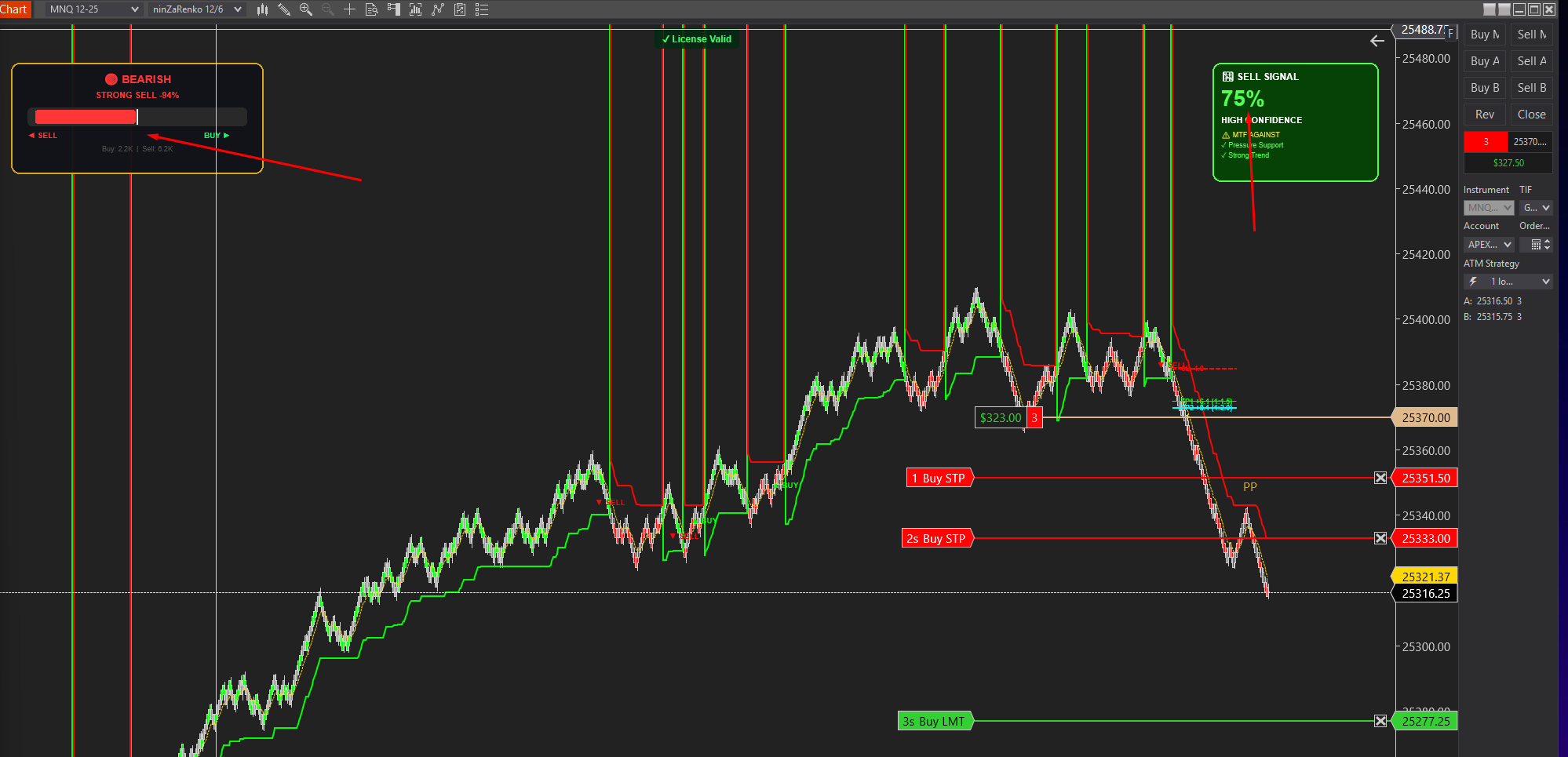
Advanced order flow analysis with real-time Pressure Delta Meter, multi-timeframe confluence scoring, and intelligent signal probability rating. Know who's in control before you trade.
4.6 (63 reviews)
$49.99
UltraADXVolatilityWaves - NT8 Trading Indicator
Free for Pro Members
NT8

UltraADXVolatilityWaves

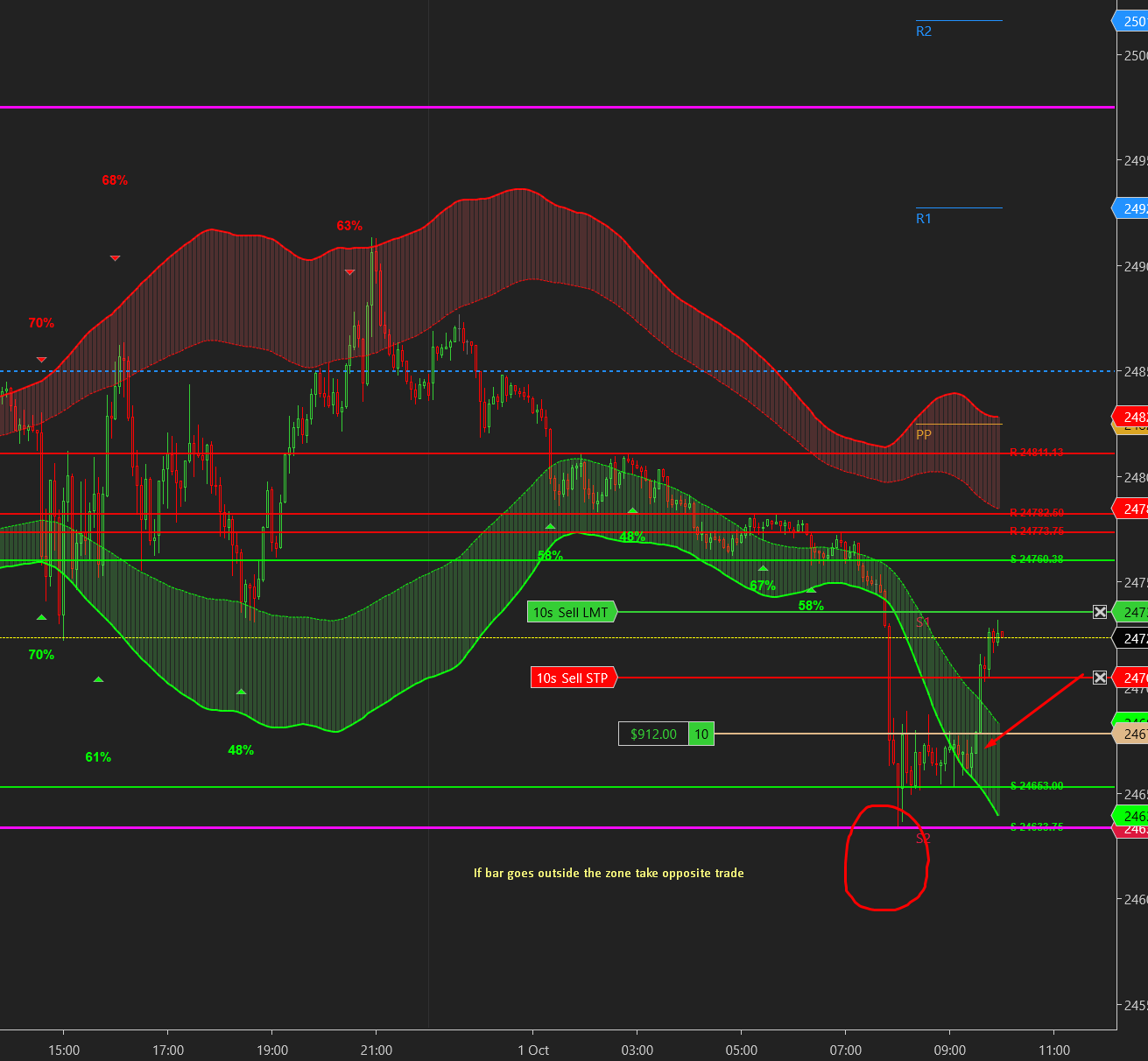
Professional ADX-powered volatility zones indicator with dynamic Support/Resistance, Daily/Weekly levels, ATR-based TP/SL targets, and probability-scored signals. Identify high-probability reversal zones in real-time.

4.2 (35 reviews)
$49.99
ICT HTF Candles Pro - NT8 Trading Indicator
Free for Pro Members
NT8

ICT HTF Candles Pro

Visualize multiple higher timeframe candles directly on your chart with real-time countdown timers, Fair Value Gap detection, and Volume Imbalance highlighting. Perfect for ICT traders who need multi-timeframe confluence without switching charts.

4.8 (73 reviews)
$9.99

👋 Hi there! How can we help?